Rapid deployment of Plone to Amazon EC2
If you were at my Plone hosting on Amazon EC2 talk at the Plone Conference 2009 in Budapest, you know that I have a keen interest in making it easier to get a Plone site deployed and running on a production server. While there are many hosting providers that offer VPS machines or “slices”, none of them come close to providing the level of scalability and flexibility that Amazon provides. Whether you want a single small server or a cluster of highly available machines that auto-scale as traffic and resources on your site increases, Amazon offers room to grow as your needs change over time.
Here is the video and presentation slides of my talk:
Case study: Deploying Plone-powered Rhaptos software to Amazon EC2
On a recent customer project with Rice University, I had the opportunity to explore using Amazon EC2 to deploy the Rhaptos software. Rhaptos is the open source software built on Plone that powers Connexions, a web-based repository of educational materials. I remember hearing about Connexions at the very first Plone Conference 2003 in New Orleans, and being very impressed with what they had built on top of Plone.
In this 2006 TED talk by Connexions founder Richard Baraniuk, he explains the vision behind Connexions : cutting out the textbook and allowing teachers to share and modify course materials freely, anywhere in the world.
The Connexions team is taking it a step further and making it even easier for prospective universities to evaluate and run Rhaptos by providing a cloud-based hosting solution.
Scalable infrastructure
The Connexions site gets over 1,500,000 visitors per month, so having an infrastructure that is built to handle this amount of traffic is essential. Using Amazon’s Elastic Load Balancing (ELB), auto-scaling and CloudFront as a CDN, plus the ease with which you can launch additional instances to run as Zeo clients, makes Amazon a perfect platform on which to build a highly scalable Plone site.
Fault tolerance and disaster recovery
In addition, the servers that currently host the Connexions site are located at Rice University in Houston, which is in hurricane territory. One reason for exploring a cloud-based hosting strategy is to provide a backup plan in the event that a hurricane were to strike Houston and take out the Rice University data center, the entire operation could be quickly deployed up on Amazon EC2.
Easy testing and demoing
Another advantage of building this deployment strategy is that new EC2 instances can quickly be launched for testing or demo purposes. For example, if another university wants to have their own sandbox to explore the Rhaptos software, they can very easily launch a machine that has all the software pre-installed and ready to use.
Or if you want to run a buildbot farm to run unit tests or functional tests, Amazon EC2 makes that very easy – and you only pay for the time that the machine is active. Once the tests are completed, you can shut down the machine and stop paying for it.
As you will see in this blog post, launching a new server with Plone already installed on it, is a matter of typing in one command, or pointing-n-clicking in a web-based dashboard.
What makes Amazon EC2 different?
Before we get started, there are a few key concepts that I want to explain. Amazon’s Web Services (AWS) differ from traditional hosting providers in several ways:
- The virtual machines are intended to be disposable
- Any data you want to persist needs to be installed on Elastic Block Storage (EBS) or S3
- You only pay for what you use
- You can take a snapshot of a running instance and turn it into an Amazon Machine Image (AMI) which can be shared with others
Instead of starting up a machine and putting all of your data on it, you typically start up a machine, attach and mount an EBS volume to it, and store all of your data on that volume. If the EC2 instance shuts down or gets terminated for any reason, your data will be safely persisted on the EBS volume. You can also take snapshots of the EBS volumes and restore from them, and you can create new EBS volumes from a saved snapshot, or share the snapshot with another Amazon AWS customer.
Think of an EBS volume as an external harddrive, that you plug into the machine and access as if it were part of your file system. The performance of the EBS volumes rivals that of the local data store, so it’s advised to use them wherever possible, not only for safety reasons but because you’ll get better performance out of a high data I/O application such as Zope.
Rhaptos Enterprise deployment usage scenarios
For Rhaptos Enterprise, we explored 3 different scenarios for deployment balancing simplicity with flexibility. The following diagram shows these scenarios:

0) Standard AMI bootstrapped with user-data script
After you’ve signed up for an Amazon AWS account, the next thing you would usually do is select a base AMI that you want to use. We chose a standard Debian Lenny AMI put together by the prolific Eric Hammond who also maintains an excellent blog about Amazon EC2. I prefer using the official Ubuntu Karmic AMIs from Canonical but Connexions was already familiar with Debian, so we stuck with that for this project.
We then started up a small instance on EC2 using the Debian Lenny AMI (ami-dcf615b5) and bootstrapped it with a user-data script with all of our Rhaptos/CNX specific dependencies. Then we checked out the buildout on the server which initiated the dataset download and import. Everything was built from scratch which takes 30 min to 1 hr from start to finish to bootstrap the server, run the buildout and import all the data into the PostgreSQL database.
Pros:
- the code is always fresh since it’s checked out from trunk
- the data is always fresh since it’s downloaded every time from the repository
- we can check out a particular branch for testing
Cons:
- it takes a long time to run the buildout and import the data every time
- it’s risky to run the buildout in place, because it can fail if there any servers that are offline
- the data is co-mingled with the application which can make it more tricky to upgrade
Summary: This first step is necessary in order to make snapshots of the AMIs and EBS volumes which are used in the other scenarios we’re about to describe. This approach to deploying the stack takes a long time, so it’s not very suitable for demo instances, but it is useful for testing out a particular branch of the codebase, or a specialized dataset.
1) All-in-one: AMIs containing system dependencies, application and data
In this usage scenario, we create specialized AMIs based on the standard Debian Lenny AMI, and make these AMIs publicly available in the AMI directory. These AMIs contain the entire stack necessary to run an instance of Rhaptos or Connexions software including the data. Everything lives on the EC2 instance, and no EBS volumes are mounted. These instances launch in about 3-7 minutes and Plone is running almost immediately after they’ve finished booting up.
Pros:
- instances start up quickly because everything is pre-loaded (no need to copy large data sets and import them into the database)
- deployment is simple because all the software and data necessary to run the app is contained on the AMI (no need to create and mount EBS volumes)
- management is easy because there is just a single EC2 instance to start/stop in the control panel (no need to track down associated EBS volumes)
Cons:
- if instance terminates unexpectedly, all data is lost application and data are co-mingled, so cannot easily upgrade application without moving data out of the way first
- system and application/data are co-mingled, so cannot easily upgrade OS dependencies without moving application out of the way
Summary: This approach is good for demo instances and testing instances in which the server is temporal and disposable. No need for backups, redundancy, and failover. Everything is self-contained, so it makes it easy to deploy. Should not be used for production instances, because the risk for data loss is too great, and maintainability is potentially difficult.
2) AMI with system dependencies + EBS volume with application and data
In this scenario, we separate out the system dependencies that don’t change very often (Squid, Postgres, Postfix, etc.) as part of the AMI, and store all of the application code (that changes more often) in an EBS
snapshot. When new EC2 instances are launched, a new EBS volume will be created from the master EBS snapshot, and it will already have all of the application code and data pre-loaded.
Pros:
- if the EC2 instance terminates for some reason, all the important data is preserved persistently on the EBS volume.
- updating to a new version of the application only requires mounting a new EBS volume from a snapshot of the new application code. (no need to build a whole new AMI)
- can update the OS level dependencies by simply launching a newly updated AMI and attaching the EBS volume to it.
Cons:
- introduces an EBS volume into the stack, which makes the deployment story more complex, especially for demo sites.
- data is co-mingled with the application, so in order to update the application, you either update in-place (risky) or move the data out of the way first.
- management is more complicated because you must keep track of which EBS volume is associated with which EC2 instance.
Summary: this solution adds complexity with an EBS volume, but with the benefit of persistent data storage and the added flexibility of being able to upgrade the OS level dependencies or application independently of each other. This solution is suitable for instances that are going to be around for awhile, so persistent data is important, but instances that might not be upgraded so often, so keeping the data co-mingled with the application is acceptable.
3) AMI with system dependencies + EBS volume with application + EBS volume with data
This is similar to #2, except that we introduce a 2nd EBS volume which contains the data (Data.fs and Postgres database). This requires modifying the standard Postgres layout to store the database on a volume other than where the Postgres application is stored, and modifying Zope to store it’s Data.fs file on a separate volume from where the Zope instance is living.
Pros:
- all the benefits of #2 separation of concerns: OS, application and data can be managed independently of each other
- don’t need to SSH into the machine to update the application or restore data from a backup. This can all be done within the ElasticFox control panel by mounting EBS volumes from snapshots.
Cons:
- more EBS volumes to manage means more complexity
- more EBS volumes means higher cost potentially
- changing the location where Postgres and Zope store their data diverges from convention
Summary: this solution has the most complexity, but also the most flexibility in that each part is separate and can be upgraded independently of the other parts. This way of componentizing the server architecture is advantageous from a redundancy and upgradeability perspective, but comes at the cost of more moving parts, and more places that things can become disconnected due to mismanagement of these resources.
Conclusion
We chose #3 for Enterprise Rhaptos because it’s the most flexible, although it’s likely that an EBS bootable AMI will be created for easy launching of testing and demo instances. Thanks to Florian Schulze’s mr.awsome, with one command, a new site can be created in a matter of minutes:
$ ./bin/aws start rhaptos-partial-32
This command will launch a new EC2 instance on a 32-bit machine, create an EBS volume from a saved EBS snapshot with a partial dataset and start the Plone site proxied behind Squid. If we wanted to launch Rhaptos on a 64-bit machine with a full dataset, we would simply substitute “rhaptos-partial-32” for “rhaptos-full-64”.
Stay tuned for a future blog post describing how you can get started using mr.awsome to easily deploy your Plone sites to Amazon EC2.
In the meantime, the folks at Connexions have been blogging about this virtualization project here and here. For the adventurous, you can try to follow the instructions to launch your own copy of Enterprise Rhaptos.
If you are coming to the Plone Symposium at Penn State University in State College, PA later this month, I will be giving a talk on Best Practices for Plone Hosting and Deployment where I will discuss these new hosting strategies for Plone and more.
UPDATE (May 16, 2010): I tried to pin the versions by making a requirements.txt, and with the command “pip install -r requirements.txt”, this did successfully check out the proper versions of all the eggs and install them into the virtualenv’s site-packages directory, but when I try to start up the Zope instance with ./bin/zopectl fg, I get this traceback.
So apparently, as Alex Clark mentions below in the comments, this is probably due to missing ZCML slugs that are provided when you use the zope2instance buildout recipe. It’s strange though that when using easy_install Plone before, I was at least able to get Zope to start up, and display the create new Plone site page.
UPDATE (May 15, 2010): Plone gurus Martin Aspeli and Hanno Schlichting advise in the comments of this blog post, that what I’m describing is not recommended, and will result in a broken Plone site. Oh well, I guess this was all wishful thinking and a thought experiment, and I’ll just have to go back to using buildout. … unless Erik Rose finishes his buildout free Plone install before he heads off to Mozilla to join other Plone/Python brethren Alexander Limi and Ian Bicking. 😉 (Whoever is in charge of hiring at Mozilla knows what they’re doing.)
PREFACE: The reason I’ve been trying to install Plone without buildout is because I wanted to use Ian Bicking’s silverlining to deploy Zope/Plone to a remote server. From what I could see with my limited experience with silverlining, there didn’t seem to be a way to tell it to run buildout on the remote server, but this may have changed since the last time I looked at it. Or maybe the approach is to run buildout locally, and then push the resulting directory up to the cloud, although I think silverlining expects all the eggs to be in the virtualenv’s lib/site-packages dir, and not buildout’s eggs dir.
Now with Plone 4, it’s even easier to install Plone because all the Zope components are available as eggs. Which means that you can install Plone the same way most Python packages are installed, with easy_install or you can use the Ian Bicking’s new pip, which is a replacement for easy_install. Of course, you probably still want to use zc.buildout since it’s still the defacto standard for developing and deploying Plone sites.
Step 1. Install Plone
Assuming you have all the system dependencies installed, you can install Plone with one simple command. If this doesn’t work, look below for what dependencies you need to install first.
$ easy_install Plone
...
Finished processing dependencies for Plone
Yes, it really is that easy. This one command will fetch Plone and all of it’s dependencies, including Zope and all of it’s dependencies. This takes a few minutes to run, so you might want to go grab a coffee or beverage of choice. If you experience errors, then look below in the Troubleshooting section.
Step 2. Make a Zope instance
Once you’ve installed Plone, then you need to create an instance with the command mkzopeinstance.
$ ./bin/mkzopeinstance
Please choose a directory in which you'd like to install
Zope "instance home" files such as database files, configuration
files, etc.

Directory: instance
Please choose a username and password for the initial user.
These will be the credentials you use to initially manage
your new Zope instance.

Username: admin
Password: ******
Verify password: ******
Now your instance has been created in a directory called “instance”.
Step 3. Start up the instance
Navigate into the instance directory that you just created and start up the instance with the zopectl command:
$ cd instance
$ ./bin/zopectl fg
/home/ubuntu/zope/instance/bin/runzope -X debug-mode=on
2010-03-21 01:16:33 INFO ZServer HTTP server started at Sun Mar 21 01:16:33 2010
 Hostname: 0.0.0.0
 Port: 8080
2010-03-21 01:16:51 INFO Zope Ready to handle requests
You can now go to http://localhost:8080 in your web browser and you should see the start screen for Plone 4, which in my opinion is a vast improvement over the previous not-very-friendly Zope Management Interface start screen.
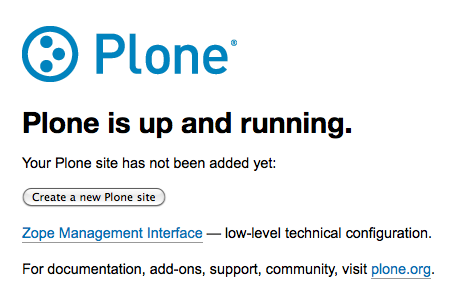
So with three commands you have a running Zope instance! When you click on the button, Create a new Plone site, you are presented with another user-friendly screen:

Now you just give your site an ID and title, choose what language you want the default site to be in, and check off what add-ons you want to install. Then you click the button Create Plone site, and if you pinned all the eggs using a requirements.txt file, you would have a working Plone site at http://localhost:8080/Plone.
WARNING: if you don’t pin the eggs, it will run the install but fail with a traceback because it’s using incompatible zope eggs.
Dependencies
The two main requirements are Python 2.6 and gcc (to compile Zope’s C extensions). If you have a Mac running Snow Leopard then you already have Python 2.6, but you’ll need to install the XCode Developer DVD to get gcc and the other build tools. You’ll also need the Python Imaging Library (PIL) and the Python setuptools package which provides the easy_install command.
If you’re on Ubuntu/Debian, here’s one command that will install all the system dependencies that Plone 4 needs to run:
$ sudo apt-get update
$ sudo apt-get install build-essential \
                       python2.6-dev \
                       python-setuptools \
                       python-imaging \
                       python-virtualenv \
Making sandboxes with virtualenv
While python-virtualenv is not necessary, it does make it possible to create an isolated Python environment that doesn’t conflict with your system Python. In this way, you can install Plone in a sandbox, and not worry that it might pollute your global Python lib directory. Here’s an example of how to make a virtualenv called “zope”:
$ cd ~
$ virtualenv zope
$ cd zope
$ source ./bin/activate
(zope)$
Now anything you install with easy_install (including Plone), will be installed into ~/zope/lib instead of the system Python lib directory.
Troubleshooting
unable to execute gcc: No such file or directory
If you see some errors that look like the following, then it means you haven’t installed gcc and you should stop the install process and look below for instructions on how to remedy this.
unable to execute gcc: No such file or directory
********************************************************************************
WARNING:

 An optional code optimization (C extension) could not be compiled.

 Optimizations for this package will not be available!

command 'gcc' failed with exit status 1
********************************************************************************
If you experience this error, then you need to install gcc which is a different process depending on whether you’re on Mac, Windows or Linux. I’ll describe how to do it for Mac and Linux because on Windows it’s more involved.
Mac OSX: install the XCode Developer tools DVD that came with your computer. Once this is done installing, you should be able to type “gcc” at the Terminal prompt and see i686-apple-darwin10-gcc-4.2.1: no input files
Linux: On Ubuntu/Debian, type the following command:
sudo apt-get install build-essential
error: Python.h: No such file or directory
If you get this error it means that you haven’t installed the Python header files. If you’re on Ubuntu/Debian, you would type:
sudo apt-get install python2.6-dev
ImportError: No module named PIL
If you get this error, it means that you haven’t installed the Python Imaging Library (PIL). On Ubuntu/Debian, you would type:
sudo apt-get install python-imaging


 Jazkarta Blog